This is the user guide for the BOM and recipe system we built for The Kosher Place, in a version for reading. The background to the project, and the problem it solves, is on the case study.
Prices, costs and people's names are blurred on purpose in every screenshot. Each user of the system sees only the screens their role allows.
Signing in and finding your way
Every team member has their own account. You sign in with a username and a personal code, and land on the first screen your role can open.
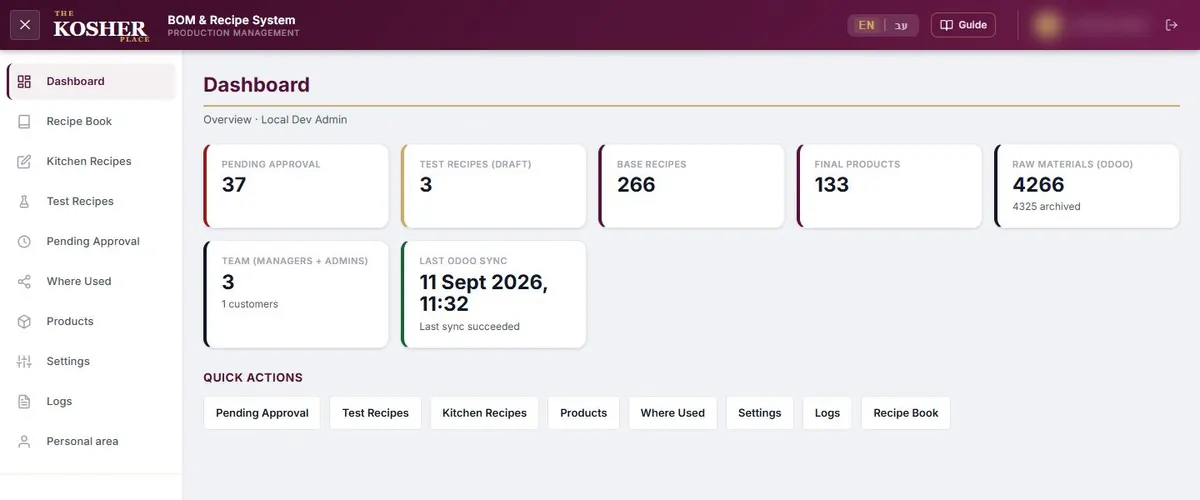
- The side menu lists only the screens your role can open. On a phone it opens from the menu button.
- The "EN | עב" switch changes the whole system between English and Hebrew, and the choice is remembered on that device.
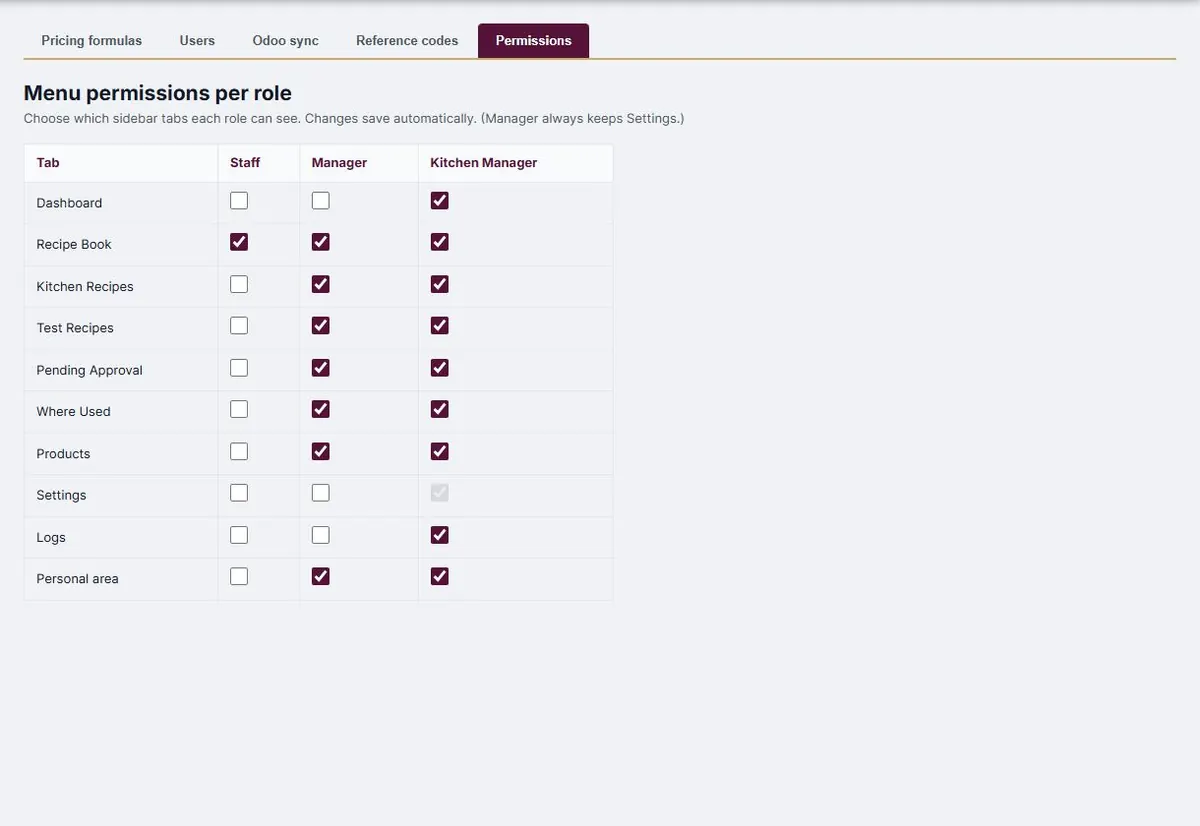
- There are three roles: Staff, Manager and Kitchen Manager. Only Kitchen Managers approve recipes, and they decide which screens each role sees.
Dashboard
The state of the system at a glance: how many recipes are waiting for approval, how many base recipes and final products exist, how many raw materials were synced from Odoo, and when the last sync ran.
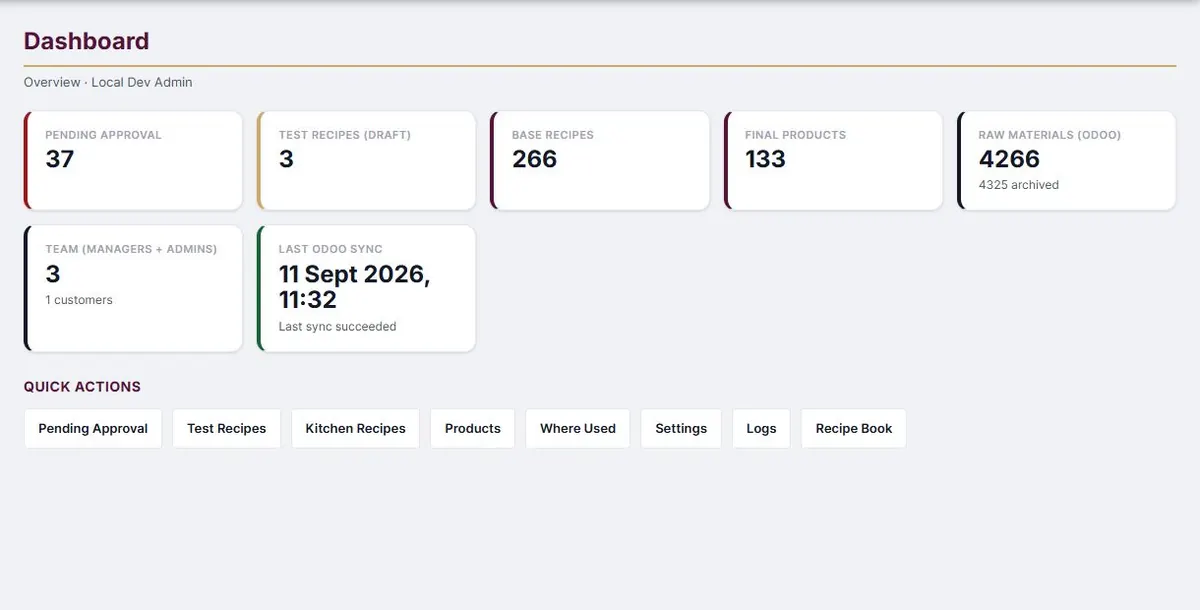
- Click a card to open the matching screen.
- "Quick actions" jump to any screen in the system.
Recipe Book
The screen the whole team works with: recipes as picture cards, search by name or code, and filters for allergens and spicy dishes.
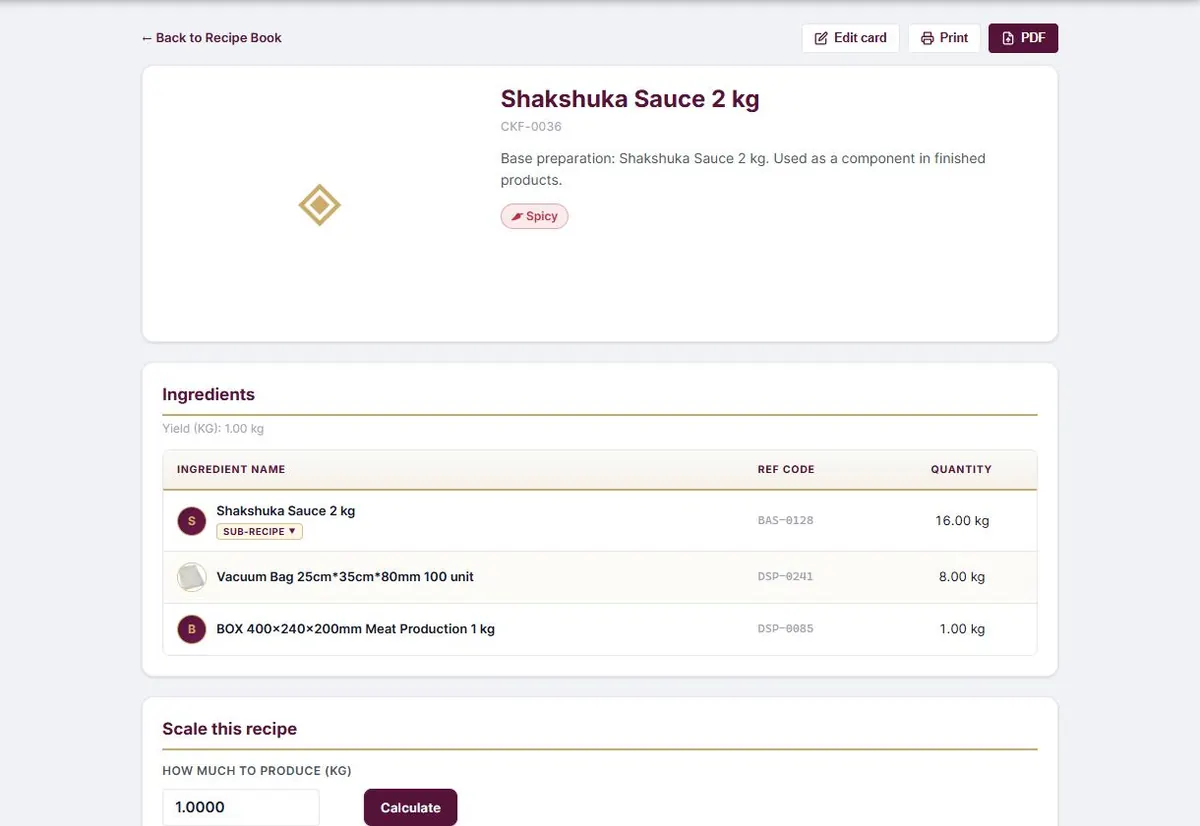
- A recipe page shows the ingredients for one batch, the net weight, servings and preparation steps.
- A sub-recipe opens with a click, showing its own ingredients.
- A recipe with a red "Pending approval" tag is already in use but has not been approved by a Kitchen Manager yet.
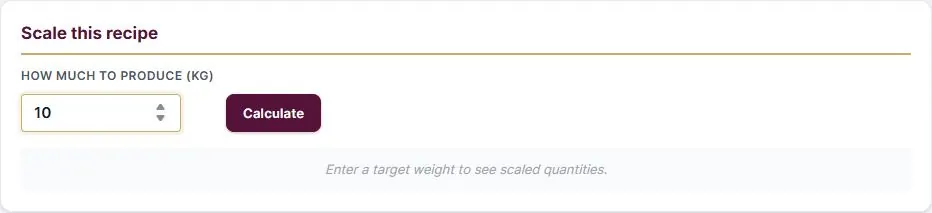
Scaling a batch: type how many kg you want to produce and click "Calculate". Every ingredient is worked out again, including the ones inside sub-recipes, and "Print prep sheet" gives the kitchen a clean sheet with no prices on it.
Kitchen Recipes
The working list of real recipes, in two tabs: base recipes and final products.
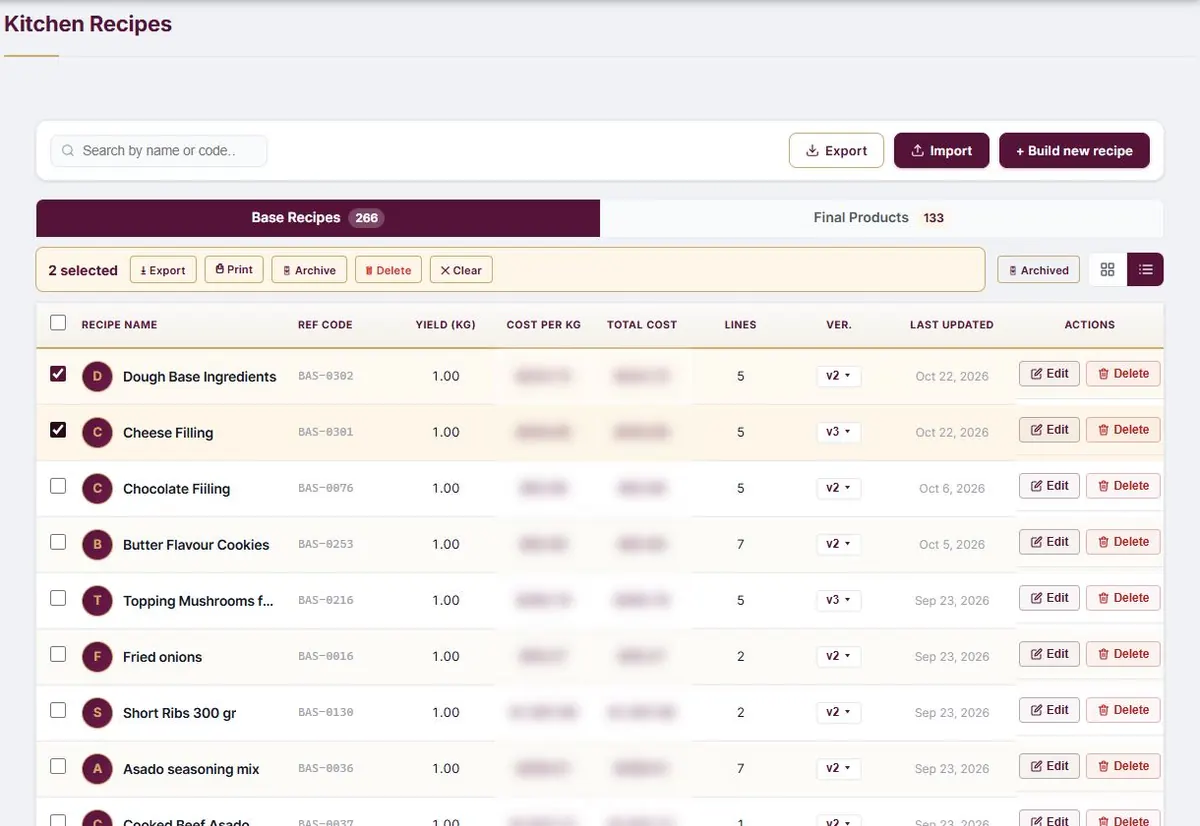
- List view adds the cost per kg, the total cost and the version, and every column sorts with a click.
- Tick several recipes to get a bar of actions: export to Excel, print, archive or delete.
- Every save keeps a version, with the cost at that moment.
- Delete is permanent. To hide a recipe and keep it, archive it. A recipe used as a sub-recipe cannot be deleted.
Recipe Builder
Where every recipe is made. The cost is worked out as ingredients are added.
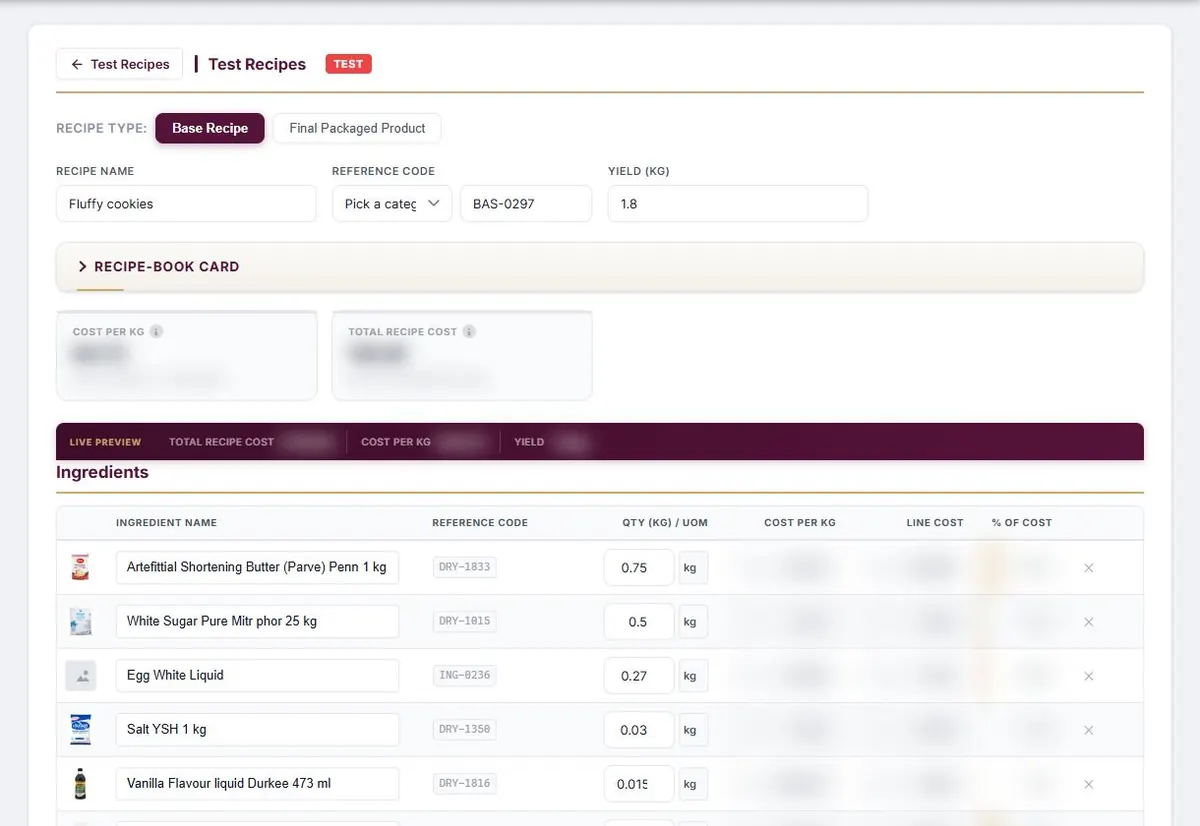
- Choose a type: a base recipe (a preparation used inside other recipes) or a final packaged product.
- Pick a category for the reference code, and the next free code is filled in.
- Add ingredients by searching: a raw material from the catalogue, or another recipe as a sub-recipe, with a quantity and a unit (kg, g, L, ml or unit).
- For a final product, also choose whether it is sold per kg or per unit, and which pricing formula applies.
- A new recipe that has not been saved yet stays on the computer, so you can leave and come back to it.
Excel import and export
Recipes move in and out of the system as Excel files, so nothing that already exists has to be typed again.
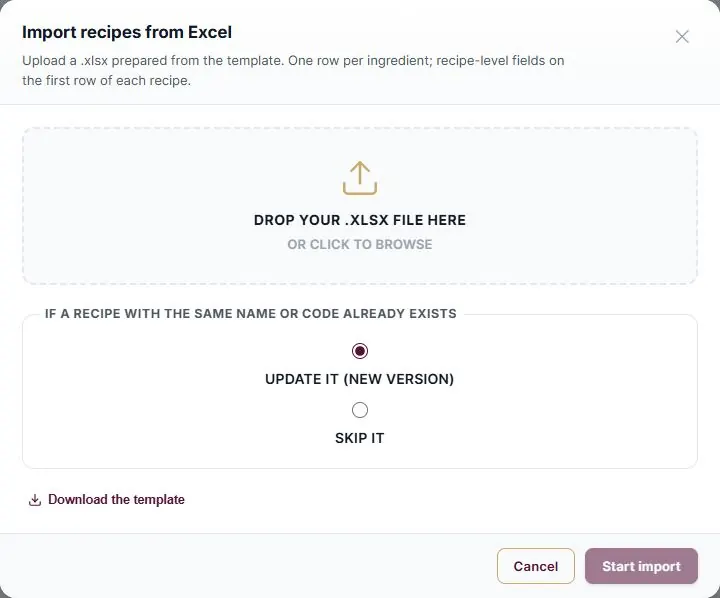
- Download the template and fill it in: one row per ingredient, with the recipe details on the first row of each recipe.
- Choose what happens when a recipe with the same name or code already exists: update it as a new version, or skip it.
- The results screen shows what was created, updated, skipped and failed.
Test Recipes
A sandbox for recipes in development. They stay out of the real lists until they are sent for approval.
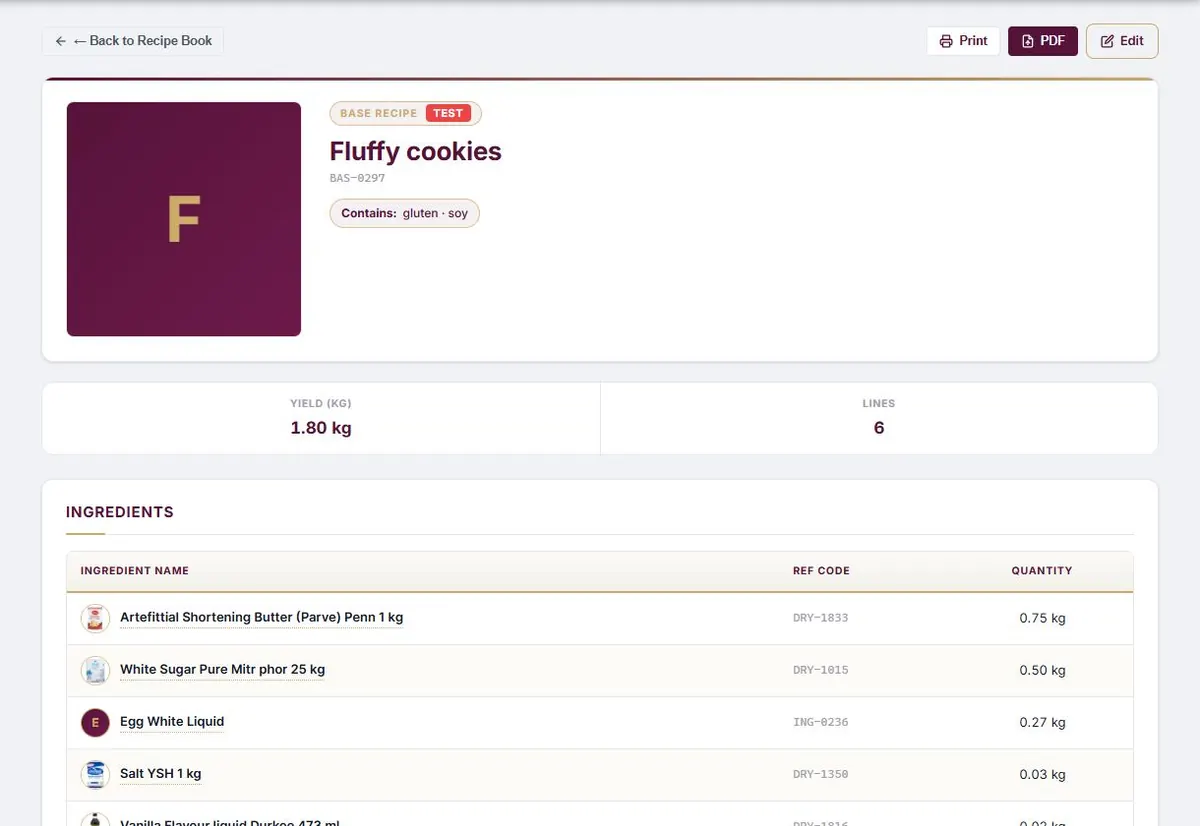
- A product that is not in the catalogue yet goes in as a red row, so the work can carry on.
- When the recipe is ready, send it for approval. If every ingredient exists, it joins the lists straight away with a "Pending approval" tag.
- A recipe with red ingredients waits until those products are created in Odoo and synced.
Pending Approval
One queue for everything sent for approval.
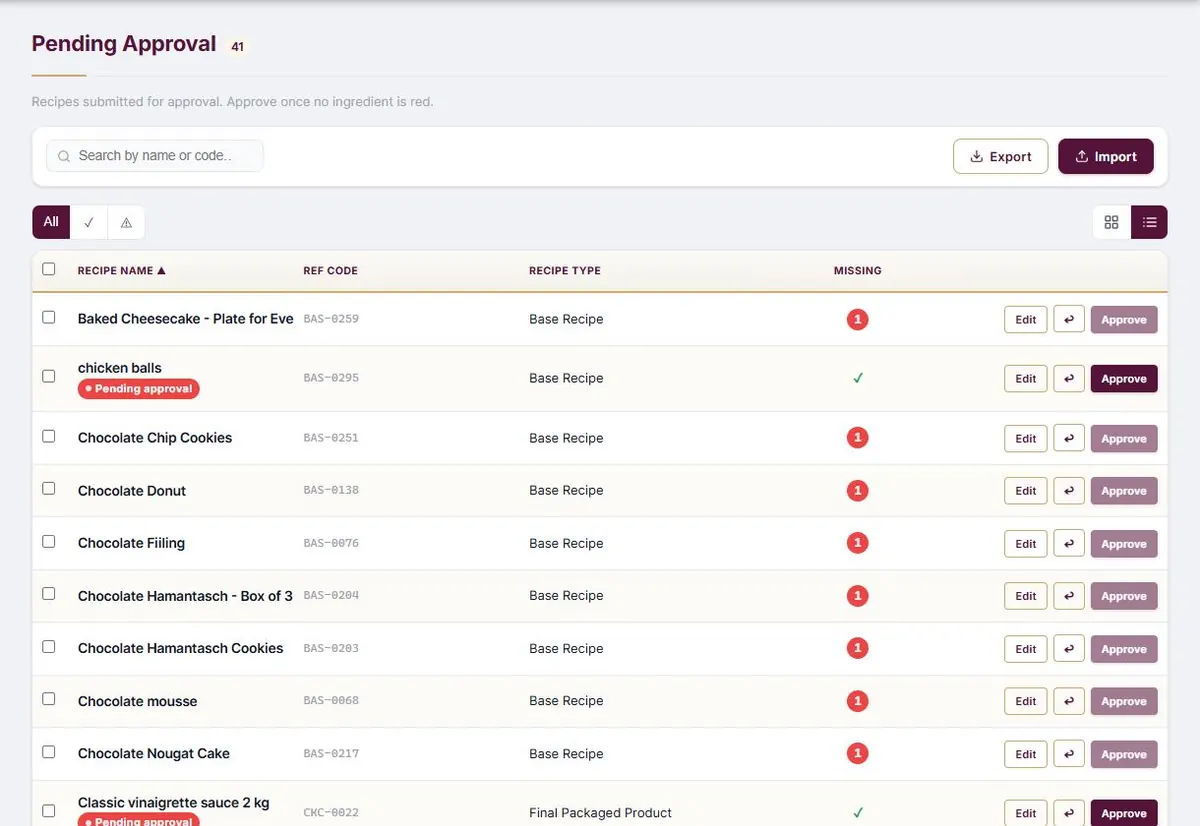
- Filter between all, ready, and has issues.
- Kitchen Managers approve, or send a recipe back with a note saying what to complete.
- A recipe that was sent back keeps working in the lists, with an orange "Returned for fixes" tag.
Where Used
Before a price or an ingredient change goes ahead, see which recipes it will change.
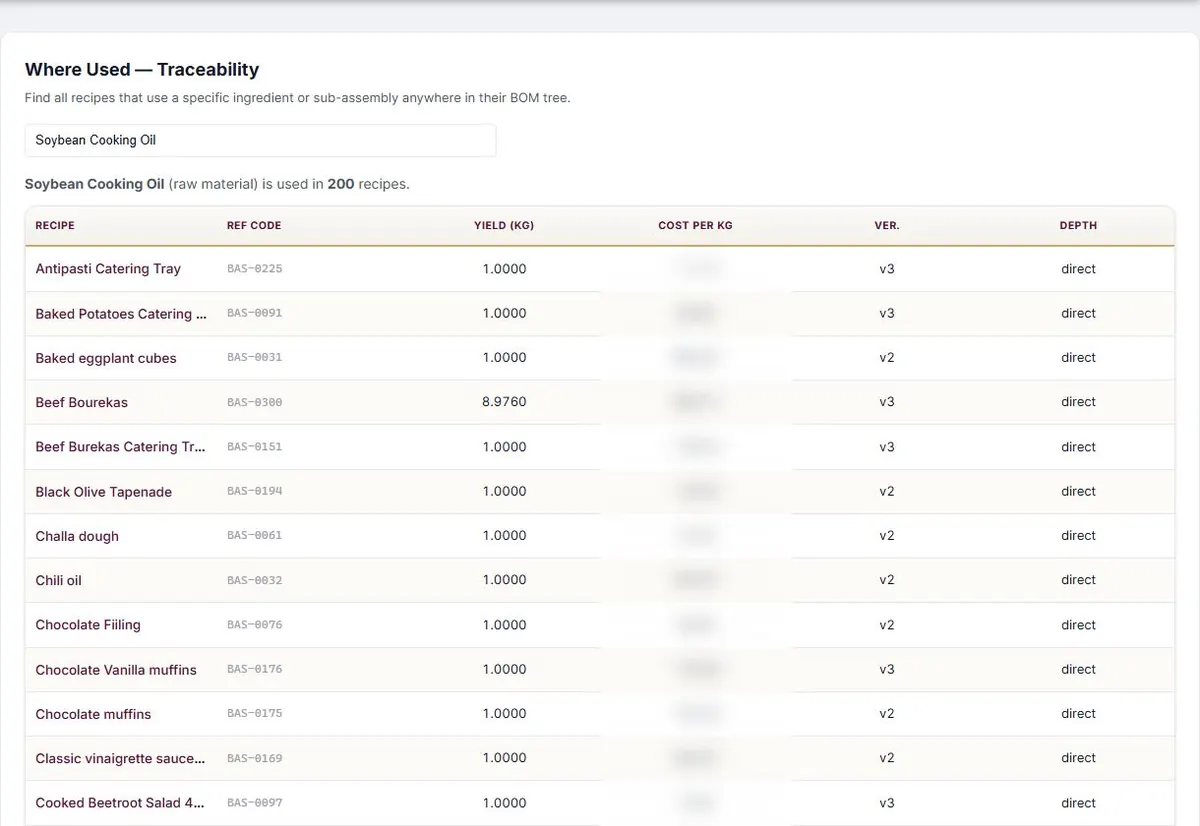
- Search for an ingredient or a sub-recipe, and get every recipe that uses it.
- "Depth" shows whether the use is direct or through a sub-recipe, and how many levels down.
Products and ingredients
The raw-material catalogue synced from Odoo, with the cost per kg every recipe relies on.
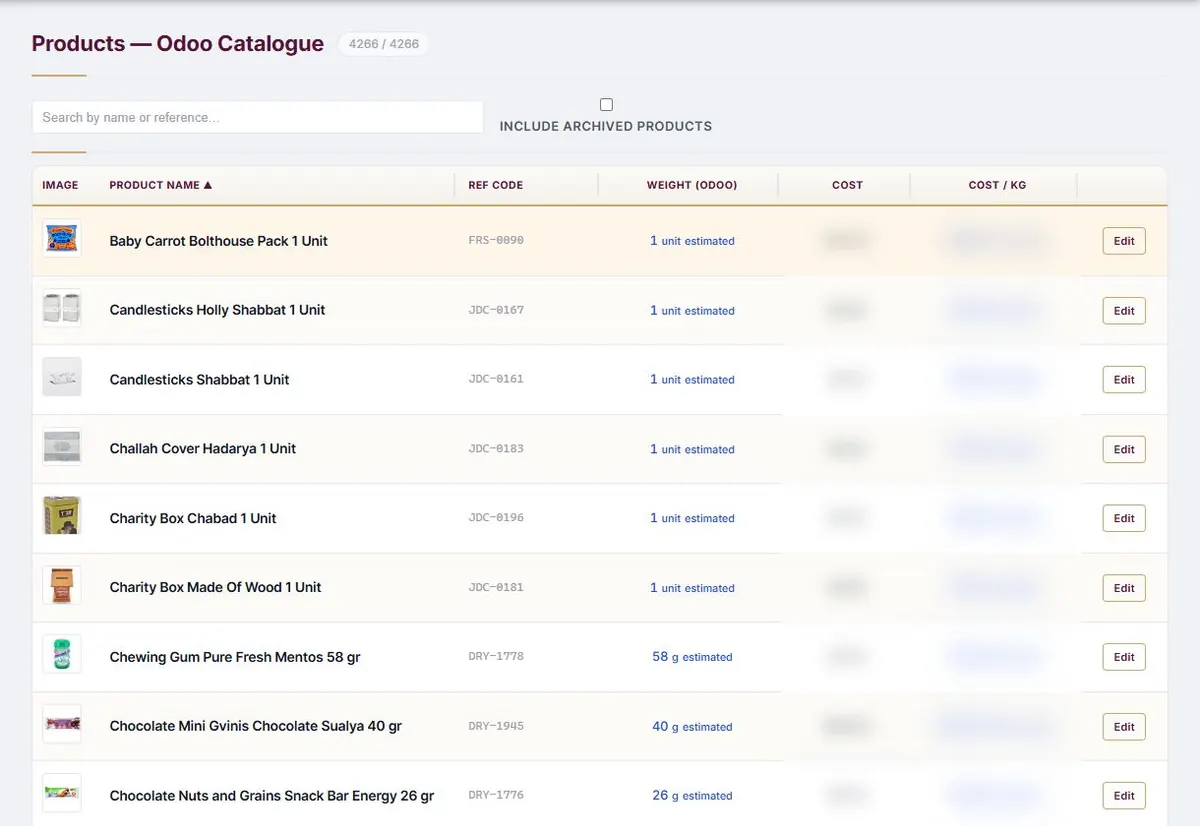
- A weight read from the product name is tagged "estimated", and a value entered by hand is tagged "manual".
- "Edit" lets you correct the cost, the weight or the cost per kg by hand. An empty field goes back to the automatic value.
- After a manual correction, run "Recalculate all recipe costs" in Settings.
Pricing formulas
The formulas that turn a cost into a wholesale price and a retail price.
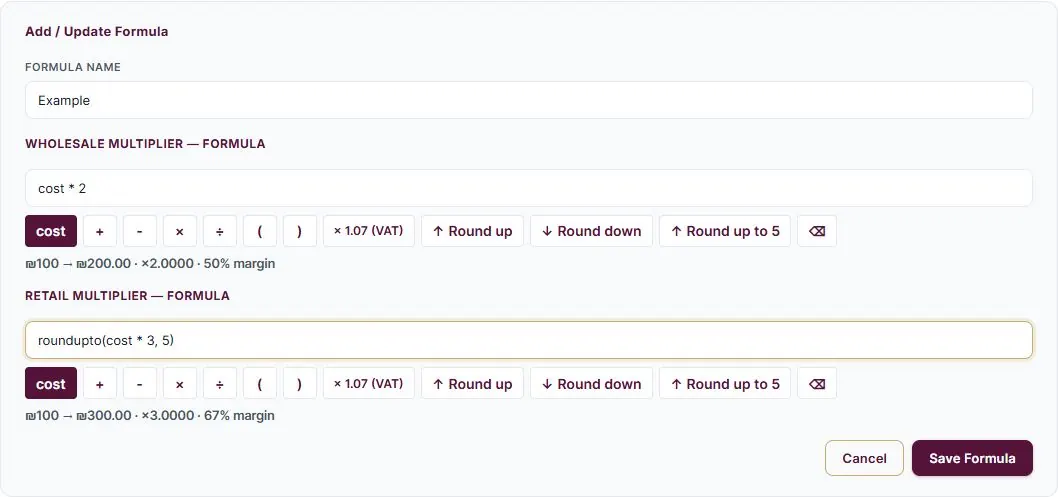
- Build a formula from the variable cost and the buttons: arithmetic, VAT and rounding (up, down, or up to 5).
- A preview shows what a cost of 100 becomes, and the margin.
- The default formula applies to every final product without one of its own. Changing a formula changes the prices of every product that uses it.
Settings
Running the system: users, the Odoo sync, reference codes and permissions.
- Users: create, edit and deactivate. "Can view prices" decides whether Staff see prices.
- Odoo sync: runs on its own schedule, and can also be run by hand.
- Reference codes: prefixes of 3 to 5 letters, from which the next free code is taken.
- Permissions: a grid of screens against roles. Every tick is saved at once.
Logs
The audit log: sign-ins, user changes, formula edits, syncs and batch calculations, with who did them and when.
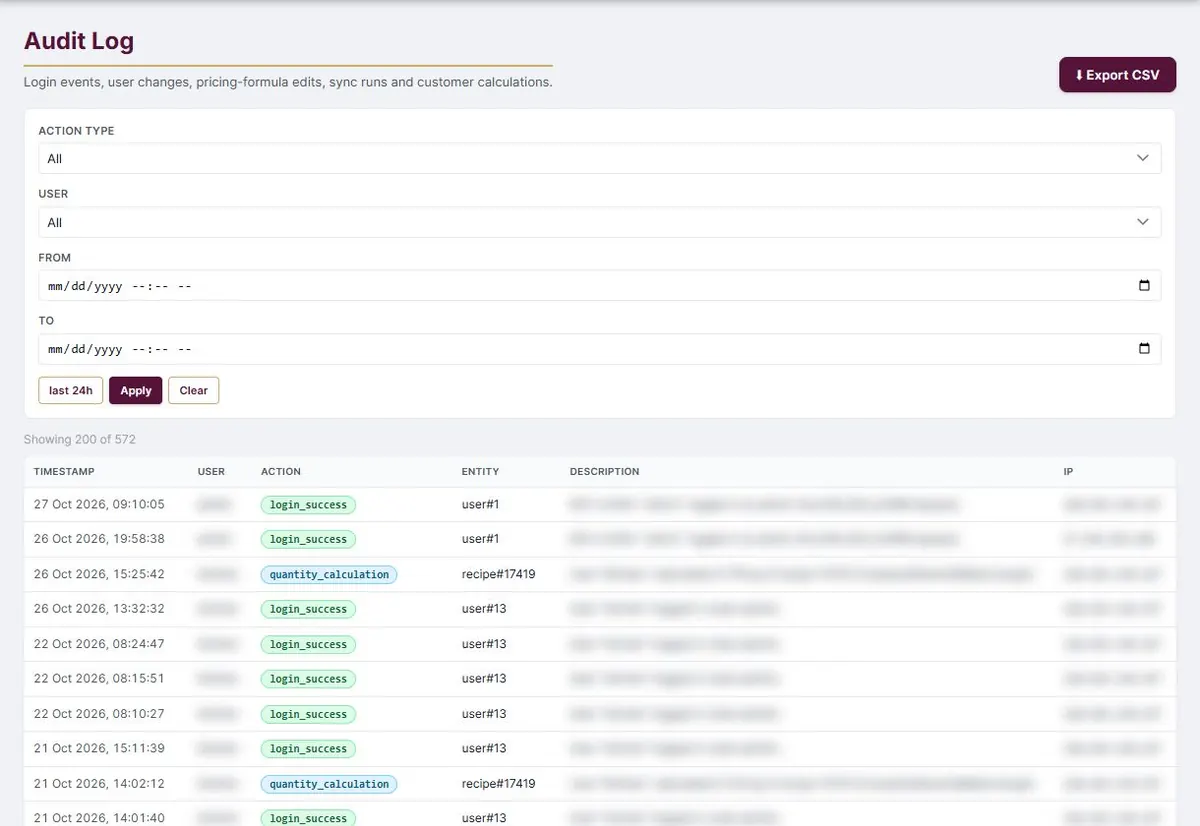
- Filter by action type, user and date range, then click "Apply".
- "Export CSV" downloads the rows on the screen.
Printing
Any recipe can be printed or saved as a PDF.
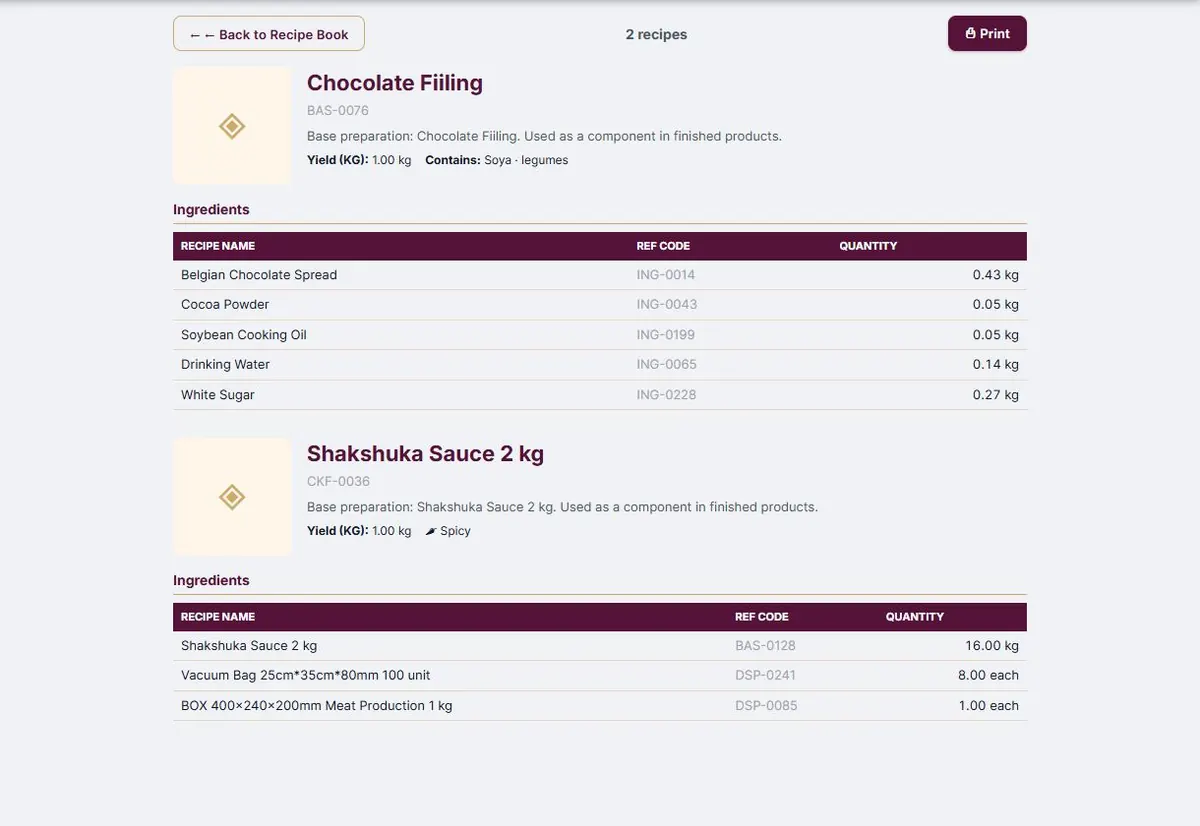
- A prep sheet for the kitchen, for any batch size: from the Recipe Book, after "Calculate".
- Several recipes at once: tick them in the list and click "Print". Each recipe gets its own page, with no prices.
- Printing from the recipe management view includes costs and prices, so it is for internal use only.
Personal area
Each user manages their own details.
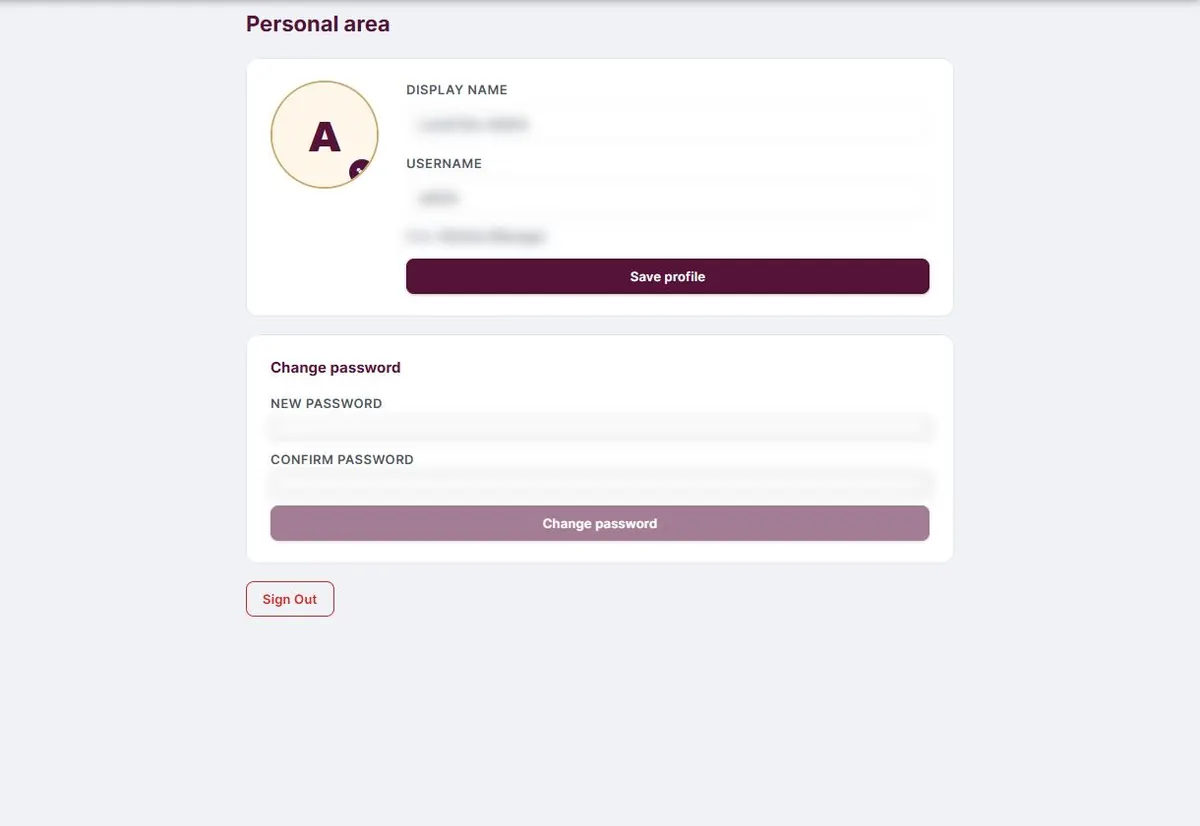
- A photo, a display name and a username, saved with "Save profile".
- A password change: at least 6 characters, typed twice.
Want a system that does the arithmetic instead of a spreadsheet? Talk to us.